
Samsung Call Screening: What Your Galaxy Actually Does About Spam Calls
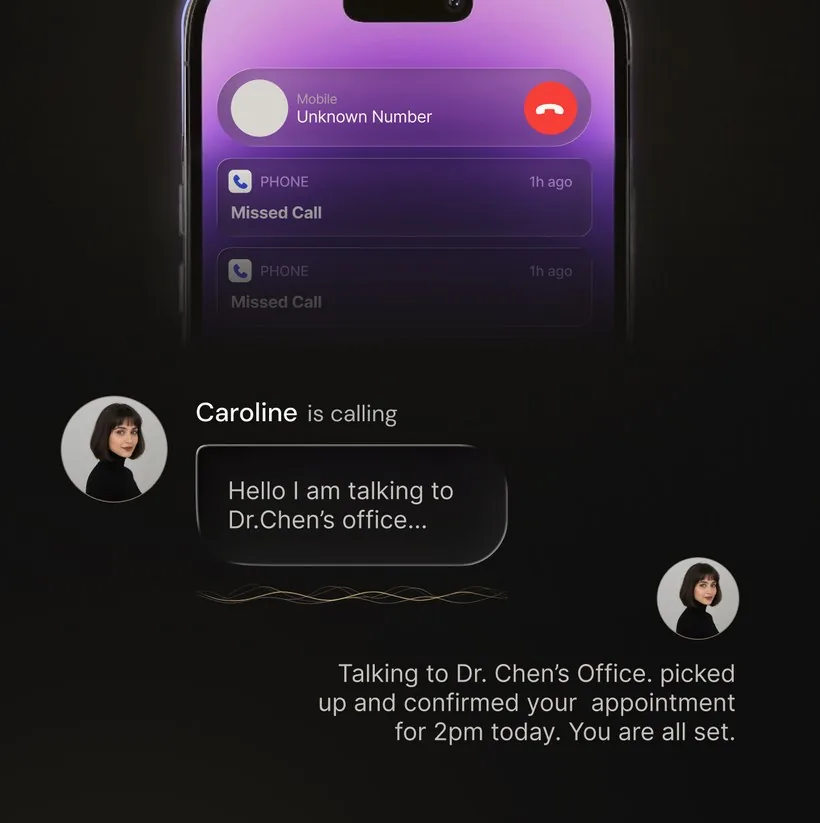
Short answer: a Galaxy can label a spam call and it can block a number, but it cannot answer one for you. Both tools live in Phone > three-dot menu > Settings: Block numbers and Caller ID and spam protection (older One UI calls it Smart Call). Samsung has no equivalent of the Pixel’s Call Screen, which picks up an unknown caller and writes down what they said.
So the honest version of “Samsung call screening” is: good filtering, no screening. Below is where each setting sits, what it changes, and what to use when you want to know what the caller wanted rather than just fewer rings.
Key takeaways
- Samsung does two of the three jobs. It labels unknown callers and it blocks numbers. Nothing in the Phone app answers a call on your behalf.
- Everything is in one menu. Phone, three-dot menu, Settings — Block numbers, Caller ID and spam protection, and Supplementary services for the carrier features.
- Smart Call is a lookup. It shows a likely name or a spam warning. The phone still rings, and the label is a guess, not proof of identity.
- Bixby text call is not screening. On supported models it turns a call into text both ways, but you still accept the call and type the replies.
- To get the call answered, you forward it to something that picks up, asks who is calling, and sends you a transcript.
Three jobs people call “screening”
Most Samsung spam advice is confusing because one word is doing three jobs. Separate them and the menu makes sense straight away.
| The job | What it means | Does a Galaxy do it? |
|---|---|---|
| Blocking | The call is stopped before it reaches you | Yes — Block numbers |
| Caller ID | The phone still rings, but with a name or a spam warning | Yes — Caller ID and spam protection |
| Screening | Something answers first and asks who is calling and why | No — nothing in the Phone app answers for you |
That third row is the whole reason this page exists. A Pixel running Call Screen in Phone by Google can answer a call, ask the caller what they want, and show you the words on screen. Samsung’s Phone app has no such feature, and Google limits Call Screen by device and country, so installing the Google Phone app on a Galaxy is not a reliable route to it either.
Where every Samsung setting lives
One menu holds nearly all of it. Open Phone, tap the three-dot menu in the top corner, then Settings.
| Setting | Path from the Phone app | What it actually does |
|---|---|---|
| Block numbers | ⋮ > Settings > Block numbers | Your blocklist, plus a switch for calls from unknown or private numbers |
| Caller ID and spam protection | ⋮ > Settings > Caller ID and spam protection | Looks up unknown numbers and labels suspected spam (older builds: Smart Call) |
| Supplementary services | ⋮ > Settings > Supplementary services | The carrier-side features: call forwarding, call waiting, caller ID display |
| Record calls | ⋮ > Settings > Record calls | Call recording, where Samsung offers it — it is missing in several regions |
| Bixby text call | ⋮ > Settings > Bixby text call | Take a call in text instead of voice, on supported models and languages |
If a row is not there, you are not doing it wrong. Samsung moves and renames these between One UI versions, and some depend on your model, region and carrier. Scroll the whole Settings list before deciding a feature is missing.
How to block spam calls on a Samsung
Work down this list. The first two take under a minute and cover most of what arrives in a normal week.
- Open Phone, tap the three-dot menu, then Settings.
- Tap Caller ID and spam protection and turn it on, so unknown numbers arrive with a label instead of a blank.
- Go back and tap Block numbers. Add a number by hand, or pick it from your recent calls.
- On the same screen, switch on blocking for unknown or private numbers if you are willing to lose the occasional genuine withheld call.
- Ask your carrier which call-blocking service is included with your plan. That filters upstream, before the call ever reaches the handset.
- In the United States, add your number at DoNotCall.gov. It discourages callers who follow the rules; it does nothing to callers already faking their caller ID.
To block a number you have just heard from: open Phone, tap Recents, tap the call to open its details, then choose Block. The number joins the same list under Settings > Block numbers, and you can remove it from there if you blocked it by mistake.
What Smart Call does, and what it doesn’t
Smart Call — now usually labelled Caller ID and spam protection — checks an incoming number against a caller-ID database and puts what it finds on the ringing screen. A likely business name. A “suspected spam” warning. Sometimes nothing at all.
That is genuinely useful, and it is also the whole of it. The phone rings either way. Nobody asks the caller a question. If the label is wrong, you find out by answering.
A label tells you about the number, not about the call
What a Galaxy shows you for three unknown callers in the same morning.
- (216) 555-0142 · 09:12Suspected spam. Labelled, so you ignored it.
- (216) 555-0188 · 10:04No label. Rang through. You missed it.
- (216) 555-0231 · 11:37No label. Rang through. You missed it.
- The gapTwo unknown callers got through and neither left a clue. One of them was a courier. The phone cannot tell you which.
An illustration, not a screenshot. The numbers shown are reserved for examples and belong to nobody.
Caller ID answers “should this ring?” It never answers “what did they want?”
A spam label is also a guess from a database, and caller ID can be faked. A familiar-looking local number is not proof of who is on the line — which is why a blocklist mostly records the callers you have already met rather than stopping the next one. The longer version of why those numbers keep changing is in why you are getting so many spam calls.
Bixby text call: the nearest thing, and still not screening
On supported Galaxy models, Bixby text call lets you take a call in writing: the caller’s speech appears as text, and what you type is read out to them in a synthesised voice. Some versions can open with a preset greeting.
It is a real transcription feature and worth switching on. But it is not screening, for one reason: you are still on the call. You have to be holding the phone, accept the call, and type. That helps in a meeting. It does nothing while you are driving, asleep, or already on another line. Availability depends on model, region and language.
Supplementary services: the carrier layer
Phone > ⋮ > Settings > Supplementary services is the odd one out. Nothing in it is Samsung’s: it is a front end for features your carrier runs on the network — call forwarding, call waiting, and whether your own number is shown when you dial out.
It matters here for two reasons. First, if calls are vanishing before they ring, a forwarding rule left behind by an old app is a common cause, and this is where you clear it — see how to turn off call forwarding. Second, it is the same menu that sends your unanswered calls somewhere useful, which is how an assistant gets to answer them at all.
Where a Galaxy’s own tools stop
- No call gets answered. Blocking and labelling are decisions about whether to ring. Neither produces a message or a transcript.
- A missed unknown call stays a mystery. Unless the caller leaves voicemail, you have a number and nothing else.
- Blocking is one number at a time. Campaigns rotate numbers, so the list grows while the volume does not fall.
- Labels can be wrong in both directions. A real clinic can arrive unlabelled; a legitimate number can be flagged.
- It is incoming only. Nothing here calls the clinic back for you or waits out the hold music.
- Features vary. Call recording, Bixby text call and some spam options depend on model, region and carrier.
What OsmO adds on a Galaxy
OsmO is the missing third row. It sits on your existing number through call forwarding, so a call you do not pick up reaches your assistant instead of voicemail. It answers in a natural voice, asks who is calling and why, takes a message, and sends you the transcript. You choose whether it answers only unknown callers or everyone, and you can name the contacts it must never pick up for.

It also works the other way round. OsmO can place a call for you — a booking, a follow-up, or sitting through a phone menu — and report back what happened. It runs on Android and iPhone.
Being straight about the trade: it is a separate app with a setup step, not a toggle in Samsung’s menu, and it will not identify every spam caller. What it adds is a conversation and a written record where the phone previously gave you a missed call.
| What you want | Samsung’s own tools | Pixel Call Screen | OsmO on a Galaxy |
|---|---|---|---|
| A warning before you pick up | Caller ID and spam protection | Caller ID and spam | No — OsmO is not a caller-ID directory |
| A number silenced for good | Block numbers | Blocked numbers | Blocking stays your phone’s job |
| Something answers an unknown caller | Not available | Supported Pixel phones, some countries | Yes, on the calls you forward |
| A written record of what they wanted | Not available | Screening transcript on the phone | Transcript after an assistant-handled call |
| A call made on your behalf | Not available | Not available | Yes, for supported tasks |
Pick one, not both. Google’s own Call Screen documentation says automatic screening should not be used alongside call forwarding, because screened calls will not be forwarded. If you forward calls to an assistant, leave Google’s automatic screening off.
Frequently asked questions
Does Samsung have call screening?
Not in the sense of something answering for you. A Galaxy labels suspected spam through Caller ID and spam protection and blocks numbers through Block numbers. There is no Samsung version of the Pixel’s Call Screen. Wording and availability vary by One UI version, region, carrier and model.
How do I block spam calls on my Samsung?
Phone > ⋮ > Settings. Turn on Caller ID and spam protection, then open Block numbers to add numbers and to block calls from unknown or private numbers. Add your carrier’s blocking service on top, since that filters before the call reaches you.
What is Smart Call on Samsung?
Samsung’s name for caller identification and spam labelling in the Phone app, shown as Caller ID and spam protection on newer One UI versions. It looks the number up and shows a likely name or a spam warning. The phone still rings.
How do I stop spam calls on Samsung without an app?
Three layers, all free: turn on Caller ID and spam protection, use Block numbers including the unknown-or-private switch, and add your carrier’s own call blocking. In the United States, register at DoNotCall.gov as well. None of them can ask a caller what they want.
Can a Galaxy answer calls for me like a Pixel can?
Not with Samsung’s Phone app. Bixby text call turns an accepted call into text both ways on supported models, but you still take the call yourself. To have calls answered while you are unavailable, forward them to an assistant such as OsmO, which asks who is calling and sends you a transcript.
Where is the blocked numbers list on a Samsung?
Phone > ⋮ > Settings > Block numbers. Everything you have blocked is listed there, and you can remove a number you blocked by mistake.
What is Supplementary services on a Samsung phone?
The Phone app menu holding the features your carrier runs on the network rather than on the handset: call forwarding, call waiting, and whether your number is shown when you dial out. It sits at Phone > ⋮ > Settings > Supplementary services.
Official sources
- Samsung US: Calling features on Galaxy phones.
- Samsung UK: Use the call functions on your device.
- Samsung support — search your own model for “Caller ID and spam protection”, “Block numbers” or “Bixby text call”, since the menus differ by One UI version and region.
- Phone by Google: Call Screen — availability, transcripts, and the call-forwarding conflict.
- Phone by Google: caller ID and spam protection.
- FTC: how to block unwanted calls.
- FCC: stop unwanted robocalls and texts.
- OsmO: features, pricing and privacy policy.
Related: Best Android call screening apps · Best call blockers for Android · Call forwarding on Android · Google Call Screen vs OsmO · Why am I getting so many spam calls? · AI call screening explained